Microsoft 365 — grant Sovereign company email
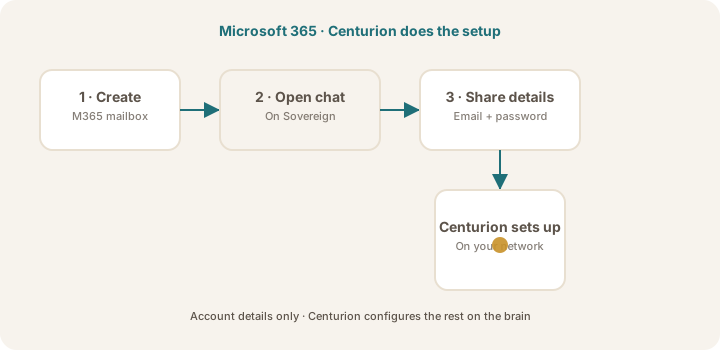
Create a Microsoft 365 mailbox, then share the account details in Centurion chat on your Sovereign brain so Centurion connects mail for you.
This guide is for the owner or Microsoft 365 / IT admin. You create a dedicated Exchange Online mailbox, then give Centurion the account details in Centurion chat on your Sovereign brain. Centurion completes the connection. You do not set this up in the iPhone app.
Before you start
You need:
- Access to the Microsoft 365 admin centre (or an IT ticket)
- Access to Centurion chat on your Sovereign brain (at the appliance — not Sovereign Remote on iPhone)
Warning
Share the mailbox password only in Centurion chat on your Sovereign. Do not send it to Centurion Limited support, put it in the iPhone app, or store it in a shared drive.
Step 1 — Create the dedicated mailbox
- In the Microsoft 365 admin centre, create a new user with a mailbox for the Sovereign.
- Use a clear address such as
sovereign@yourcompany.comorassistant@yourcompany.com. - Set a strong password.
- Apply MFA according to company policy (if MFA blocks simple sign-in, ask IT for the approved method Centurion should use — Centurion will guide you).
- Confirm the mailbox can send and receive mail.
Tip
Display name “Sovereign” helps colleagues recognise who is writing.
Step 2 — Open Centurion chat on your Sovereign brain
- Sit at (or remotely reach) your Sovereign brain.
- Open Centurion chat on the brain.
- Do not use the iPhone app for this step.
Step 3 — Share the account details with Centurion
In Centurion chat, tell Centurion you want Microsoft 365 / company email connected, and share:
- The email address
- The password
- Anything else Centurion asks for (for example a one-time code, or a link to approve)
Example you can paste and fill in:
Please connect company email for this Sovereign.
Provider: Microsoft 365
Address: sovereign@yourcompany.com
Password: [password]
Set up mail access on this brain.
Centurion will configure the connection and keep credentials on the brain.
Step 4 — Follow Centurion’s prompts
If Centurion shows a sign-in page, approval link, or asks for a code:
- Complete it as the dedicated mailbox user.
- Prefer that mailbox — not a personal executive inbox — unless policy requires otherwise.
- Return to Centurion chat and confirm when done.
You do not need to register an Entra app or choose Graph permissions yourself. Centurion handles setup from the account details.
Step 5 — Verify
Ask Centurion in the same chat to:
- Check recent mail in that mailbox, or
- Send a short test message to yourself
Confirm the message appears in Outlook / Exchange Online for that address.
Revoke access
IT stays in control:
- Reset the mailbox password, or disable / delete the user in Microsoft 365.
- Tell Centurion on the brain to disconnect company mail if your build offers that.
Related
- Give your Sovereign a company mailbox — overview and IT Q&A
- Google Workspace setup — if you use Google
- Security brief for IT
Was this article helpful?