Give your Sovereign a company mailbox
Create a company email account, then tell Centurion on your Sovereign brain — it sets up the rest from the account details.
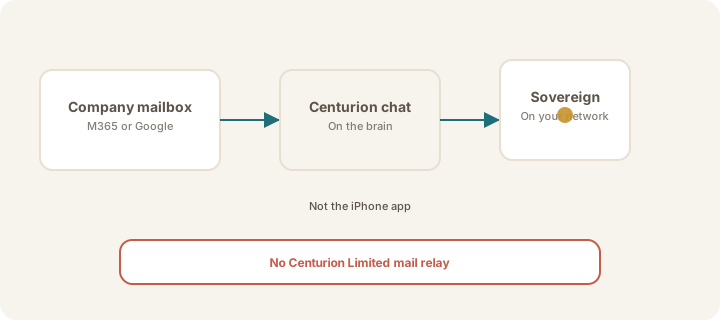
Company mail for your Sovereign is set up on the Sovereign brain, in Centurion chat — not in the iPhone app.
Your job is simple: create a dedicated company email account, then tell Centurion the account details. Centurion configures access on the brain. Centurion Limited does not host, proxy, or store that mail.
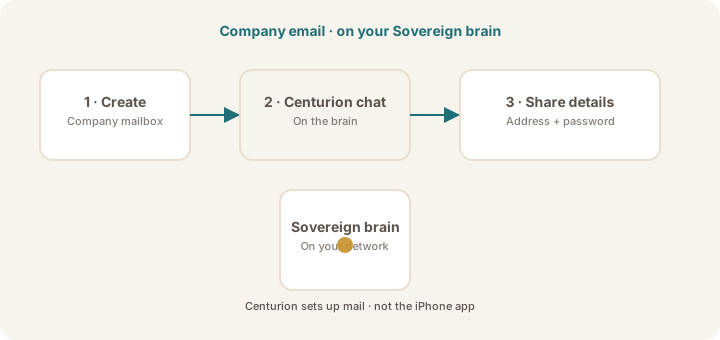
The only workflow
- Create a dedicated company mailbox (Microsoft 365 or Google Workspace).
- Open Centurion chat on your Sovereign brain.
- Share the account details (address, password, and anything Centurion asks for).
- Follow any prompts Centurion gives you (for example a sign-in or approval link).
- Centurion stores credentials and tokens on the brain and connects mail for you.
You do not need to register OAuth apps, pick Graph scopes, or configure IMAP yourself — Centurion handles that once it has the account details.
Not the iPhone app
Sovereign Remote on iPhone is for talking to your brain after it is linked. Mail setup happens in Centurion chat on the Sovereign itself.
This is also separate from choosing a thinking service.
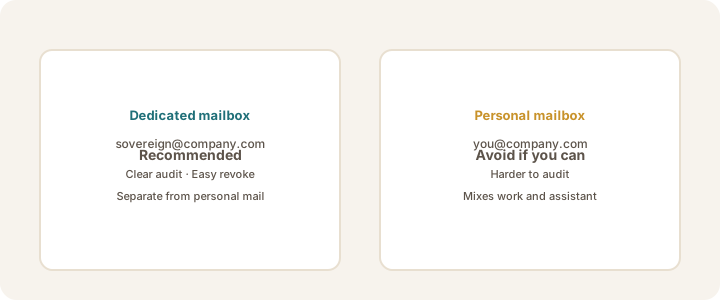
Prefer a dedicated mailbox
Give the Sovereign its own address. Do not connect the principal’s personal work inbox unless policy requires it.
Choose your guide
| Your company mail | Follow this guide |
|---|---|
| Microsoft 365 / Exchange Online | Microsoft 365 setup |
| Google Workspace / Gmail | Google Workspace setup |
What Centurion needs from you
Typically:
- Email address (for example
sovereign@yourcompany.com) - Password for that account
- Any MFA / app-password note your IT team requires (Centurion will ask if something else is needed)
Keep those details in Centurion chat on the brain — not in email to Centurion Limited support, and not in the iPhone app.
Rules that always apply
- Tokens and passwords stay on your Sovereign brain
- Centurion Limited is not in the mail path
- IT can disable the mailbox or reset the password at any time
- If policy requires air-gap, leave mail disconnected — Sovereign still works offline
Q&A for IT teams — common misconceptions
“Connecting AI to company email means our mail goes to a vendor cloud.”
Not with this model. Mail is accessed from the Sovereign brain under your company’s mailbox rules. Centurion Limited does not host, proxy, or store company mail. See the Security brief.
“We’ll have to give Centurion Limited our Microsoft or Google admin access.”
No. You create a mailbox in your tenant. Account details are shared only with Centurion on your Sovereign brain. Centurion Limited support should never receive the password.
“Setup happens in the iPhone app.”
No. Sovereign Remote on iPhone is for talking to a linked brain. Mail setup is done in Centurion chat on the Sovereign brain.
“We must connect the CEO’s (or principal’s) personal work inbox.”
Prefer not to. Give the Sovereign a dedicated address such as sovereign@yourcompany.com. That keeps audit, consent, and revocation clear.
“Once connected, we can’t take it back.”
You can. Reset the mailbox password, disable or delete the user, or tell Centurion on the brain to disconnect. Your identity provider and mailbox stay under IT control.
“This is the same as ChatGPT, Copilot, or another cloud AI reading our mailbox.”
It is a different architecture. Those products typically process mail in a multi-tenant cloud service. Here, the assistant that uses the mailbox runs on hardware you own. Thinking services (models) are separate from the mail connection — see device link vs thinking service.
“IT has to register Entra apps, Graph scopes, or Google Cloud OAuth clients before anything works.”
Not for the owner’s path. Create the mailbox, then share account details in Centurion chat. Centurion configures the connection on the brain. IT may still set MFA or org policies as usual.
“Passwords and tokens will leave our building / sit in Centurion’s systems.”
They should not. Credentials and tokens stay on the Sovereign brain. Do not paste them into Centurion Limited email, tickets, or the iPhone app.
“If we allow mail, we can’t keep an air-gapped posture.”
Mail is optional. If policy forbids it, leave mail disconnected. The Sovereign still works offline for private work on the brain.
“Approving this means Centurion Limited is FedRAMP / SOC 2 certified for our mail.”
Do not assume that. We do not claim FedRAMP, SOC 2, or similar authorisations for this pattern. The position is architectural: owner-controlled hardware, IdP-governed mailbox, no Centurion mail relay. Use your own questionnaire process — start from the Security brief.
“Sharing the password in chat is the same as emailing it to a vendor.”
No. Centurion chat on the brain is local to your Sovereign. That is not Centurion Limited’s support inbox. Still treat the password as sensitive: use a dedicated mailbox and revoke when needed.
Note
For the IT security brief, see Security for IT reviewers on the main site.
Was this article helpful?